Title
Published Body
- If you are using Business Hours, toggle off and back on the Business Hours feature in the Case Flags Setup Wizard to re-schedule the job that periodically calculates previously business hours. The is required because jobs copied during a sandbox refresh do not run unless they are recreated.
- If you are using a Partial or Full Sandbox, no action is required and Case Flags should work just as it did in production automatically and you don't need to perform the following steps.
- If you are using a Developer, or Developer Pro Sandbox, Salesforce does not copy documents as a part of the refresh and the flag images won't be available automatically. Additionally, the Salesforce managed package installer won't add the images if you perform a re-install in the sandbox. To test, you can refer to the image "alt text" displayed in place of the image: L1 = Blue, L2, = Yellow, L3 = Red, L4 = Black, assuming you are using the supplied images. If you would like to have the images display, follow these steps:
1. In Production, navigate to Documents > Case Flags Documents (folder), and download the following 4 images:
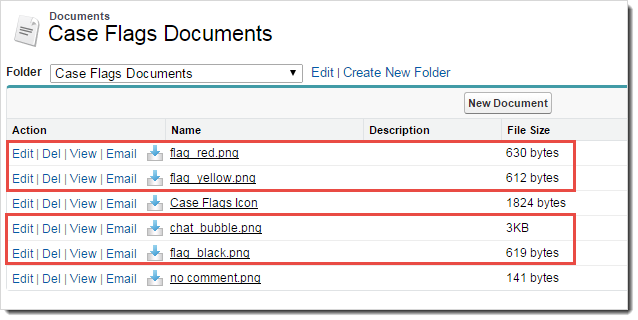
2. In your Sandbox, upload the images to the existing Case Flags Documents folder. Note: the Document Name and Document Unique Name does not need to match those in production.
3. In Production, navigate to Documents > Case Flags Templates (folder), and download the available images.
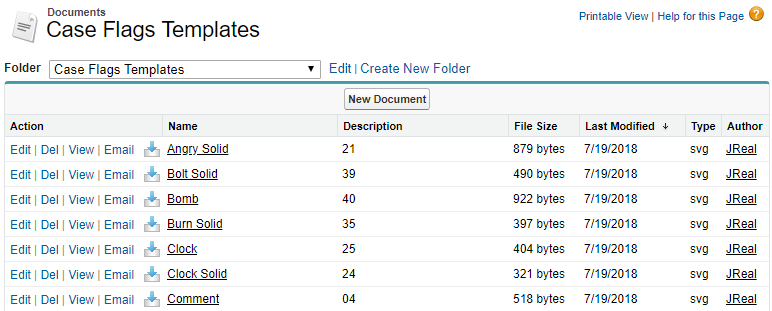
Note: This step is only required if you're planning to use flag icons that differ from the 4 main flag images.To save time, only download the templates you're planning to use.
For example, if you're planning to utilize the Hour Glass icons to represent your flags, do not download the Thermometer, Face and other icon templates which will not be used.
4. In your Sandbox, upload the images to the existing Case Flags Templates folder. Note: the Document Name and Document Unique Name does not need to match those in production.
2. In your Sandbox, upload the images to the existing Case Flags Documents folder. Note: the Document Name and Document Unique Name does not need to match those in production.
3. In Production, navigate to Documents > Case Flags Templates (folder), and download the available images.
Note: This step is only required if you're planning to use flag icons that differ from the 4 main flag images.To save time, only download the templates you're planning to use.
For example, if you're planning to utilize the Hour Glass icons to represent your flags, do not download the Thermometer, Face and other icon templates which will not be used.
4. In your Sandbox, upload the images to the existing Case Flags Templates folder. Note: the Document Name and Document Unique Name does not need to match those in production.
5. Navigate to the Case Flags Setup Wizard and select the images in the Flag Icons and Default Hours section.